Showing posts with label Command Blocks. Show all posts

Wednesday, April 18, 2018

Minecraft Pe, how to Make Secret Passage Walls


Hey guys what's up? My name is SmallSteveT!  Today is sadly going to be shorter, but is awesome!  Today I will be showing you how to make secret walls!  What do you need?  What do you need, well that's simple it's just one command block!  What can this be used for?  This can be used for making a secret passage to hide stuff from enemies or even friends!  What do you do with the command block?  Well everybody that knows about the command block should know that you just type in a command!  What command?  Well this is not long at all but here is the command:

/fill 100 64 102 100 65 102 stone_button 14

This should make a two-block tall, and one-block wide pillar of stone blocks, that you can walk through!  Just remember that you have to put the 14 in the command, and that you can break the block easily because it is two big stone buttons that you can walk through!  Pretty cool right?  I definitely think it is super cool!

I am sorry if you were disappointed about how short it was today. But that's it for today!  Goodbye!

Monday, April 16, 2018

Minecraft Pe how to Make a Better Secret Chest Using Commands and More


In Minecraft pe there are a few ways to make secret chests, but the best way is with commands!  Here are the steps for making a secret chest using commands: First get a command block and a lever, or button. Next place the command block above where the chest will be, and type this in it:

/summon chest_minecart ~ ~-1 ~0.5

the 0.5 will either be on the first "~" or the second one, but it can also be -0.5 on either of them depending on where you placed the command block. But depending on where the command block is, it could be 0.1 or 0.2 or possibly 0.3, or negative values for any of those numbers. If you do this correctly you should be able to access it and not be able to see it. But you have to have a block (any block) above the secret chest, or else you will be able to see the top of it!  Now I shall tell you how to make a locked chest with a sword lock pick!


Here are the directions for making the locked chest with a lock pick: First get these items: four command blocks, one iron sword, one chest, one shulker spawn egg, Redstone Comparator, one Redtone torch, a 6x2x3 hole in the ground, and how ever much you want of the block of your choice. The next thing you will do is place two command blocks at the thin back part of the hole, and make sure the arrows are both facing the right. Then make the command block on the left repeat, and always active. Then type this in the always active command block:

/enchant SmallSteveT looting 1

Then place the comparator so that the two red parts that are closer to each other are facing the always active command block. Then get out a iron sword, and place it in your hand. This will enchant your sword, and when it does it will power up the comparator!  The next thing you will do is place a block right in front of the comparator, then place a Redstone torch on that block. Next make the command block to the right of the always active command block a chain, conditional, and always active command block. Then type this in the chain command block:

/tp @e[type=shulker] 357 55 22

But type in the coordinates of the location right in front of the first chain command block, instead of the 357 55 22. Then place a command block to the right of the Redstone torch, and the arrow must face forward from where you were standing. Next make that command block a second repeating command block and do NOT make it always active. Then type this in the second repeating command block:

/tp @e[type=shulker] 357 58 22

The coordinates will be the same as the first, but the number in the middle (highlighted above) will be 3 above the other coordinates in the other command block. Then place another chain, conditional, and always active command block, then type this in that command block:

/effect @e[type=shulker] invisibility 99999 250 true

All of this will teleport the shulker in the spot of where you have to place the chest, and the shulker will be invisible so when you hold the lock pick it will teleport the shulker back to the original location. So now you have a locked chest and lock pick!  That is so cool, right?!

Anyway that's it for today!  Goodbye!

Monday, April 9, 2018

Minecraft Pe How to Make Magnetic Arrows and More!

In Minecraft, have you ever wanted to keep mobs in one place for just a few minutes?  Well, now you can with the Magnetic Arrows Cheat!


  All you need is just a command block, and that's it.  First type this in the chat:

/tickingarea add ~-2 ~-2 ~-2 ~2 ~2 ~2 CMD

Then get a command block and make it always active and repeat.  Next, type this in the command block:

/execute @e[type=arrow] ~ ~ ~ tp @e[r=5,type=!player,type=!arrow] ~ ~1 ~

This will make it so everything except for other arrows and players, within a radius of 5 blocks, will teleport to the arrow you just shot!  This is helpful because on survival, enemies will chase you, and you can just keep them in one place and build a fence around them. 

Now for another command.  The Super Arrows Cheat!


  First get a command block, and change it to repeat and always active.  Then, type this in the command block:

/execute @e[type=arrow] ~ ~ ~ kill @e[type=!player,r=5]

This will kill everything except for players within a radius of 5 blocks of the arrow.  This is helpful for getting mobs out of the way, and getting tons of items that the mobs drop (commonly called "drops").  That's pretty cool, huh?!

Anyway, that's it for today!  Goodbye!

Friday, April 6, 2018

Minecraft Pe /give Command Components and More

In Minecraft Pe the "/give" command has only two components =( . Those components are called "can_place_on" , and "can_destroy".


 But this will make the command more longer. Also these parts of a command they are used for adventure mode only, they don't do any thing on survival or creative. Here is a example of the "can_destroy" part of the command:  you are on adventure mode because your friend wanted to be kind of mean and wanted to test you.


 So you type in this:

/give @s diamond_pickaxe 1 0 {"can_destroy":{"blocks":["stone","cobblestone","iron_ore","diamond_ore"]}}

This will give you, well, a diamond pickax (in minecraft a pickax is called a pickaxe) that can destroy stone, cobblestone, iron ore, and diamond ore. Also you will probably want to type this in if you can't find a cave:

/give @s diamond_shovel 1 0 {"can_destroy":{"blocks":["grass","dirt"]}}

This will make it so you can dig through the grass, and dirt in order to get to stone if you can't find a cave nearby.  Here is a example of the "can_place_on"(which is the other component of the command) part of the command:  you are still on adventure mode because of your friend, and you need shelter for the night. So you type this in:

/give @s planks 64 0 {"can_place_on":{"blocks":["grass","planks"]}}

This will make it so you get oak planks that you can place on grass, and oak planks so now you can get shelter. Then your friend takes you off of adventure mode and on to creative mode again, and you have finished your test.

Now I will tell you how to make a good doorbell with commands.


First make your house, then break two blocks up so a player could fit in that space. Next place a command block on the bottom block, and type this in:

/playsound random.levelup @a ~2 ~ ~ 1 0.5

Then place a block above the command block and place a button on that block you just placed.
This will play a sound of a player leveling up their experience point bar, but more slower than normal. The "1" in the command means how loud the sound is, and you can make this as loud as you want! The "0.5" in the command means how slow or fast it is. The normal setting for this is 1. This command will sound extremely like a doorbell or maybe wind chimes.

Anyway that's it for today! Goodbye!

Tuesday, April 3, 2018

Minecraft Pe Title Command and More


In Minecraft there is a title command.  If you have noticed it and have never used it, don't you wonder what it does?!  Well, I am now going to tell you!  Here are some examples:

/title @a clear

This command will clear any titles on the screen for everybody.

/title @a reset

This will put the title command to default settings, if you've changed the settings.

You can also make a title and a subtitle.  The title is in large words in the middle of the screen, and the subtitle is in smaller words beneath it.  You have to have a title in order to have a subtitle.


So if you wanted to make a title and subtitle that says, "GOODBYE my friends", first type in the title like this:

/title @a title Goodbye

This will display the message "Goodye" in the middle of the screen as a title.  Then write in your subtitle like this:

/title @a subtitle my friends

These two commands combined would look something like this (with a different font, of course):


You don't have to use "Goodbye my friends" as the message.  You can put anything you want!

/title @a times 60 140 80

This will change the settings of the titles that you use next.  It will make the title fade in, and then stay, and then fade out.  The numbers are ticks.  There are 20 ticks in a second.  So the command above makes it fade in for 3 seconds, it stays for 7 seconds, and then fades out for 4 seconds.

If you want to prank your friends, here are the steps:

First, get two command blocks and place them so the arrows on them are facing right from where you are going to be standing.  Place a button on the command block to the left, and type this in the command block that you just placed the button on:

/title @a title §4run!

This will get rid of the §4 and say "run!" in red letters.  The numbers determine what color the letters are.  If it's a different number like 3, it will be cyan. In order to make the § sign on the computer, press "alt 0167".  In order to do it on the Kindle Fire, hold the copyright sign down, and put your finger all the way to the left once the other options appear.

Then, make the command block to the right a chain command block.  Then type this in that chain command block:

/title @a subtitle §4it's herobrine

This will make a smaller title in red, below the red title saying "run!".  So now it will say "run! it's herobrine", and it will look something like this:

run

it's herobrine


Here is another way to prank your friends!  First, get a command block, and type this in the hover note in the command block:

Herobrine

Then, type this in the command block:

/say I bet you've heard of me for I am Herobrine and you shall all perish very very soon

This will look like it's Herobrine saying to you that you'll die very soon, which is a great way to prank your friends!

Anyway, that's it for today!  Goodbye!

Wednesday, March 14, 2018

Minecraft PE Throwing Fireballs with Commands

In Minecraft PE, sometimes I get so tired of Ghasts shooting fireballs at me, so I made the Throwable Fireball Machine! 

To do this, first get one to three command blocks (check out one of my earlier posts on command blocks if you don't know how to do this), then place them.  Make one of them always active. Then type this in to the command block that is always active:

/tp @e[type=fireball] @e[type=snowball]

This will make it so when you throw a snowball, a Ghast fireball will teleport to the same spot as the snowball, and it will be thrown in the same direction, and it doesn't fall down like a snowball does. 

The next command block in the machine is optional. Make one of the command blocks that you placed repeat and always active.  Then, type this in the new command block:

/tp @e[type=fireball] ~ ~2 ~

This command will teleport the fireball to right above the command block, until you throw it.  This is helpful so when the Ghast shoots the fireball, you will not accidentally get attacked.  Remember, you don't have to do this one.

The next command block in the machine is also optional.  First, make a command block repeat and always active, just like before, then type this in the command block:

/tp @e[type=ghast] ~ ~1 ~

This will teleport the Ghast in one spot, so that way it won't be far away from you, which would make it harder.  Just remember, you don't have to do the last two command blocks if you don't want to.  It just sometimes makes it easier.

Anyways, that's it for today!  Goodbye! =(


Tuesday, March 13, 2018

Minecraft PE Invincibility Machine Cheat and More

In Minecraft there are tons of cheats, or some people call them "hacks" or "hax."  One is the infinite diamonds/iron/emeralds/coal/Lapis Lizuli (which I will explain later in this post).

Now let's talk about the "replaceitem" invincibility machine.  This cheat makes it so when you die, you will always respawn in the same spot where you died, and have all of your stuff!


 First make a command block redstone block clock which looks like this:


In order to make the clock you get a command block (I've told you how to do this in some of my other posts), then place it. Then change it to a repeat command block.  Then, set up another command block with one block in-between them, and place the command block North of the repeating command block.  Then type this in the new command block:

/setblock ~ ~ ~-1 redstone_block 0 destroy

Note: This -1 in the coordinates means that it is one block South of the new command block, so it is in-between the new command block and the repeating command block.  If you want to learn more about coordinates, check out my video that you can find in the label section under "coordinates."  

Then, activate the second command block by placing redstone dust next to it, and a redstone torch next to the dust.  This should activate it (warning: you must be close enough to the command block for it to work).  Then type this in the OLD command block:

/replaceitem entity ike06 slot.weapon.offhand 0 totem

Type this in, but use your name instead of mine, Ike06.  And there you go!  This cheat is very useful.

Now, here is a picture of the block dupe glitch that I will talk about next:


This hack duplicates any block.  It is the the infinite diamonds/iron/emeralds/coal/Lapis Lizuli that I talked about at first.

In order to do this hack, you need about 15 redstone dust, 3 repeaters (one which is set to three-ticks, which kind of isn't really in the picture), and 1 sticky piston to the right, and 1 piston to the left.  This will make it so one piston pushes and pulls back the block, and the other piston pushes that block off, and it duplicates the block.  It keeps on pushing and pulling and getting you more and more blocks.  This glitch is super useful!

Anyway, that's it for today!

Monday, March 12, 2018

Minecraft PE: How to Make Custom Mobs

In Minecraft PE you can create custom mobs.  You can replace or change what they're wearing, so that's what makes them custom.

This is a Husk with a pumpkin head:


These are zombies with orange wool heads:


You do this by using the "replaceitem" command.  Here's an example in a command block:

/replaceitem entity @e[type=skeleton] slot.armor.head 0 pumpkin

This command will put a pumpkin on a skeleton's head! It's so cool.


 I'd make the command block repeat and always active. But I would first type this in the chat so it will block the output dialogue, which gets annoying sometimes:

/gamerule commandblockoutput false

You can type the "replaceitem" command with any mob and any item (in certain cases).  You can make the mob use the item, or drop the item, depending on what mob it is.  Here are different slots, or difference places you can put stuff, for entities on the "replaceitem" command:

  • slot.armor.chest
  • slot.armor.legs
  • slot.armor.feet
  • slot.armor.head
  • slot.horse.armor
  • slot.horse.chest
  • slot.horse.saddle
  • slot.horse
  • slot.hotbar
  • slot.inventory
  • slot.villager
  • slot.weapon.mainhand
  • slot.weapon.offhand
There are more than 100,000 combinations for just weapons, like swords, and armor!  You can do the "slot.weapon.mainhand" with any item you want -- it will put any item you want in your main hand (right hand).  This is such a cool command!

I'm sorry if you wanted to know more, but that's it for today! :(  Goodbye! :(


Friday, February 23, 2018

Some more MCPE Commands

In Minecraft PE, commands can make Minecraft easier, harder, and cooler, and lastly, more fun.  Here is a weird one:

 /give @s iron_pickaxe 1 0 {"minecraft:can_destroy":{"blocks":["stone"]}}

This can be used on adventure mode to actually break blocks, because on adventure mode you can't break blocks normally.  You can do this with whatever block you want to break, or whatever item you want to break with.  In the example above, I used an iron pickaxe to break a stone block.

Now here's a funny/cool command:

/playsound mob.enderdragon.growl @a ~ ~2 ~ 5.0 1.5

This will make a baby enderdragon sound, even though there's no such thing as a baby enderdragon!


Here is one that I think is kind of weird/cool:

/playsound mob.guardian.land_idle @a

This will make the guardian kind of sound like something electronic.


And here is a cool one:

/playsound mob.guardian.ambient @a

This one makes the guardian sound really strange/cool to me.


And that's it for today.  I'm sorry for how short it was today.  Anyway, bye!

Thursday, February 22, 2018

How to Figure Out Minecraft "~" Coordinates

My mom was confused about the coordinates with the squiggly lines (~), so we made this video to help her and other people. I hope you enjoy it!


Wednesday, February 21, 2018

Second MCPE Commands/Cheats

Hi, guys!  Today is some more Minecraft PE commands. In MCPE (Minecraft PE), my new personal favorite command is pretty mean for your friend, actually.

Here are the steps for unlucky diamonds:

  1. First get a command block by going to "chat", and typing in "/give @a command_block".
  2. Make it a repeating command block by going into the command block and go to where it says "impulse", press it and go to "repeat" and press it.  
  3. Get a redstone block, and type this in the command block: "/execute ike06 ~ ~ ~ fill ~-5 ~-5 ~-5 ~5 ~5 ~5 stone 0 replace diamond_ore".  But don't use MY name, use your friend's name instead.
This will make it so when your friend gets too close to diamond ore, the diamonds will turn to stone!  Oh, and make sure to place the redstone block right next to the command block.  There are six "~'s" because the first three "~-5's" are the starting coordinates.  The next three "~5's" are the ending coordinates.  These coordinates represent the area around your friend that the diamond ore will turn to stone within. 

Here's another one: "/fill ~-3 ~-1 ~-3 ~3 ~-1 ~3 ice 0 replace water".  This will make a 7x7x1 square below you, but only on the water.  

Here is a weird one: "/fill ~1 ~-1 ~1 ~10 ~5 ~10 cobblestone 0 hollow".  This should make a 10x10x5 cube.  One section of the blocks are in the ground (that's because of the ~-1), and all of it is made of cobblestone, and it's hollow.  But it appears diagonally next to you.  

Here is a fun command, but first get a command block (step 1 above), and a lever.  Now change the command block to repeat (step 2 above).  Place the lever on the command block, by crouching and placing it.  Then type this in "/execute ike06 ~ ~ ~ setblock ~ ~-1 ~ diamond_block 0 replace grass". Then make sure to activate the lever. This will make the diamond blocks under you if you're on grass.  But, don't use ike06, use YOUR name.  

OK, that's it for today, good luck with these commands!


Tuesday, February 20, 2018

Minecraft PE Commands/Cheats

In Minecraft PE, there are commands/cheats.  Commands make things happen that don't usually happen in the game.  To do a command, you go to the "chat", and type in the specific command.

Here are two easy commands: "/give @a stick #".  This simple command gives you a stick, or whatever item you want, however many you want.  The "@a" means all players.  The number sign is where you put how many of the item you want, from 1 to 64.  So, for example, if I wanted 64 enchanted apples, I would put in "/give @a appleenchanted 64".  If you want 5 Ender pearls, you would put in "/give @a ender_pearl 5".  If you want 64 pieces of obsidian, you would type in "/give @a obsidian 64".  You can do this for whatever items you want.  For tools, and swords, you can only get one at a time.

Another one is "/summon zombie", or whatever you want to summon.  You can summon a minecart, boat, ender_crystal, or whatever entity you want by putting it in place of the "zombie" in that command.

There are tons of possibilities with commands, like the lightning snowball.  Here is how you make the lightning snowball.  First, get a command block by typing in "/give @s command_block".  The "@s" means yourself, instead of "@a", all players.  Then make the command block a repeating command block, and place the lever, and type this in: "/execute @e[type=snowball] ~ ~ ~ summon lightning_bolt".  Make sure to activate the lever.  The "~'s" are the position, (X, Y, Z).  "X" means East/West, "Y" means high/low, and "Z" means North/South. With just the regular "~'s", the location of the lightning bolt is (0, 0, 0), which is how far away it is from the snowball.  If you want the lightning in a different place, decide where you want it and type in the (X, Y, Z) location after the "~'s".  For example, if you wanted to have the lightning bolt this far away from the snowball: (1 block East of the snowball, 5 blocks above the snowball, 25 blocks North of the snowball), you would type in the command like this: "/execute @e[type=snowball] ~1 ~5 ~25 summon lightning_bolt".

Now here is a command that is kind of mean for your friend.  This is how you make your friend explode.  First get the normal command block by typing in "/give @s command_block", then place it, of course.  Make sure the arrow is facing the left, and type this in: "/execute ike06 ~ ~ ~ summon ender_crystal".  And make sure to type in your friend's name, instead of mine, ike06.  Then place a chain command block to the left of the command block, and make sure the arrow must face the left as well.  Then, type this in: "/execute @e[type=ender_crystal] ~ ~ ~ summon arrow".  Place the lever on the command block to the right, and activate it.  Now watch your friend explode!

That's it for today.  Next time I will give you even more commands for Minecraft PE.

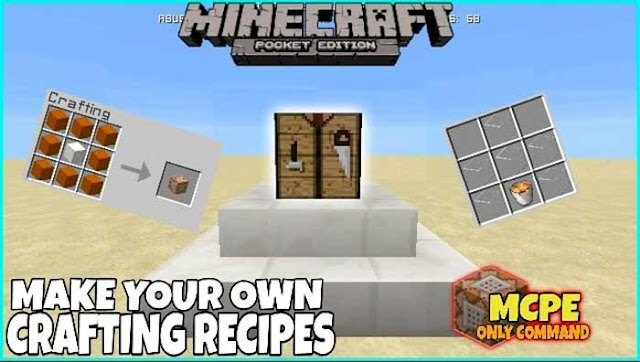
Minecraft Bedrock Edition Tutorials Custom Crafting Recipes!

In Minecraft pe have you ever wanted somthing that you can only get on creative, but you are on survival?  Well you can get those items by c...